 Home
 Back
 Forward
 Print
Calculating refund amount and adjusting paid-to dates
1. Open up the tenancy form either through the Management Agreement or through Tenants
2. Go to the Rent tab
3. Click on the Reset button

4. Change the Start of the next rent period date to the day after the tenant’s vacate date
5. Leave the Partial payment carried as $0
6. The New paid to date should now match the tenant’s Vacate date
7. Notice the effective amount credited is a negative. This is the amount that needs to be refunded back to the tenant.
8. Enter a description in the notes and click Change Status
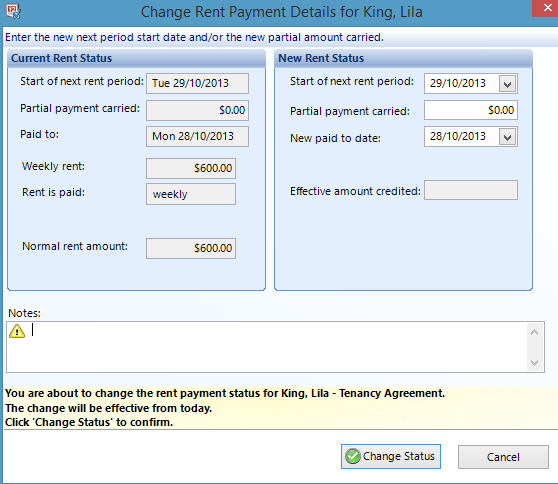
9. The tenant’s paid-to date has now been adjusted to match their vacate date and we know what amount needs to be refunded.
Refunding Overpaid Rent
1. Go to New Payment
2. Search for the property
3. Enter the date
4. Select the Rent Refund transaction code
5. Ensure the correct tenant is selected in the Payee box
6. Enter in the amount and payment method details
7. Enter a reason for the rent refund in the notes section and Save & Close
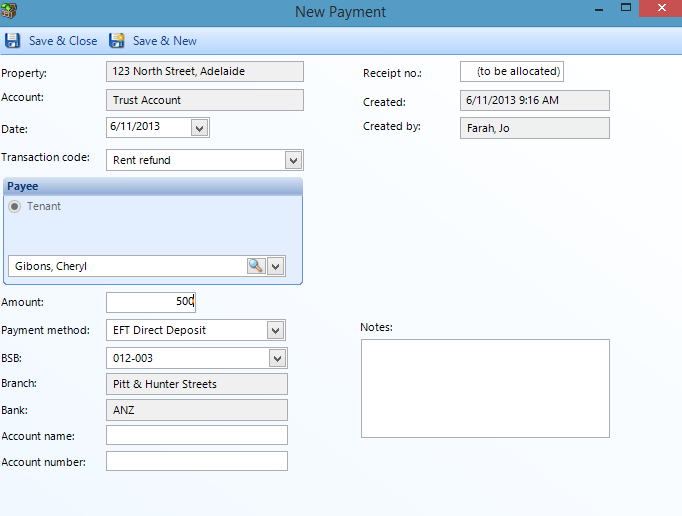
Note: Depending on the payment type you choose you may need to write out a cheque or do an electronic transfer to the tenant’s account.
If you have selected EFT Direct deposit you will then need to go to “Trust Account>ABA file EFT payments” and create a new ABA file for the refund. This may then be uploaded to the bank.
If you have done the rent/rent deposit on the day of EOM before you have created the EOM ABA file, it will be included in the ABA file later when you reach that step in the EOM procedure.