 Home
 Back
 Forward
 Print
Setting up a Key Register
Setting up a Key Register
First we will need to set up a key board. Start by going to “Administration”.
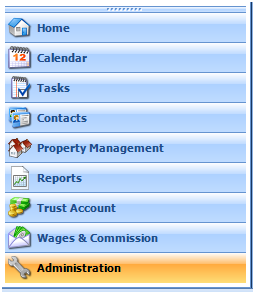
Click on “Setup Tables” and then “Key Boards”.
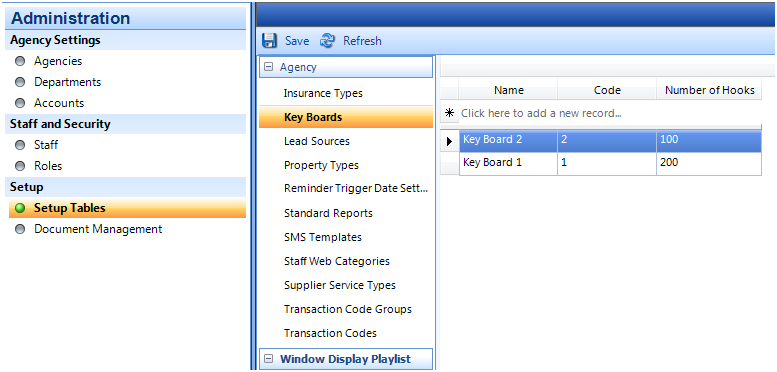
Click “Click here to add a new record” to add a new Key Board including its code and number of hooks.
Save
Now that your Key Board is set up, you can register keys by either going to the property in “All Properties” or “Management Agreements” under Property Management.
To add the keys in the management agreement, go to “Management Agreements”, search for the property and double click to open the agreement.
Click the “Key Register” tab on the right hand side of the form
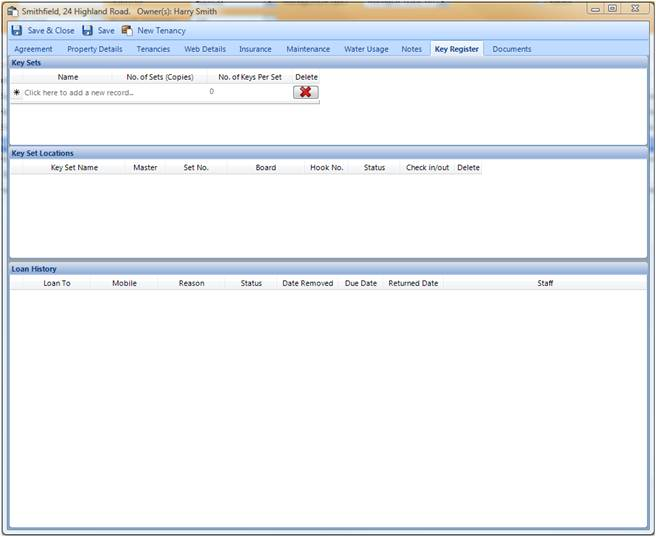
To add a new Key Set, click “click here to add a new record” under Key Sets and include the name, number of sets and the number of keys per set.
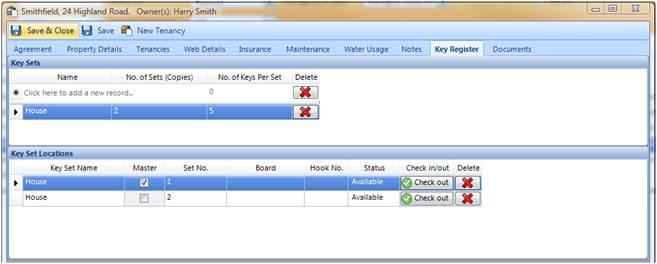
In Key Set Locations the system will automatically number the sets and designate one as the Master set. You can assign the sets to a board and hook by clicking or typing into the fields.

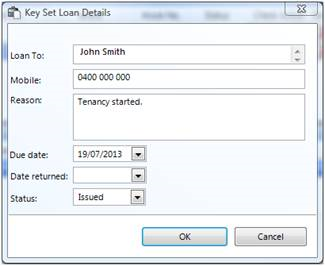
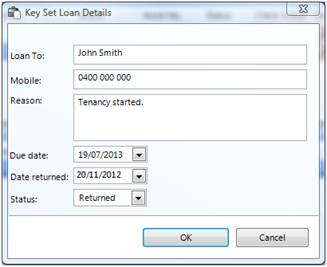
The “Loan History” box will keep the history of the key sets including the dates and who it was loaned to, as well as the staff member who gave out the keys.

You can view all of the keys in the register by going to “Key Register” and searching by using the filters at the top and clicking “Find Now”.
