 Home
 Back
 Forward
 Print
Upgrade Notes Version 2.60
This upgrade contains the following new features and enhancements.
NEW FEATURES
ONLINE HELP - NEW FEATURE
Online help is now available by selecting Help >Online Help from the top tool bar or alternatively press F1
TOOL TIP - NEW FEATURE
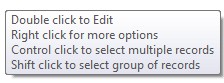
A Tool Tip message has been introduced throughout the system to explain how to edit and select records. To turn off the Tool Tip - right click and select Disable Tool Tip from the menu displayed. Note: If you receive a message that 'You do not have permission to update staff details' you will need to ask your Office Administrator of the Real Estate Manager system to disable this for you.
RIGHT CLICK - NEW FEATURE
The system now provides a right click function to display a list of actions that may be selected in a particular module. Each module has a different selection of actions available. Note: The same action items can also be selected by using the Actions menu.
RESIDENTIAL - SIMPLIFIED SALESPERSON MENU - NEW FEATURE
Administration > Staff >General - when the Sales Staff check box is enabled on this page a new simplified menu appears when that user logs on.
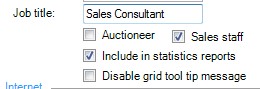
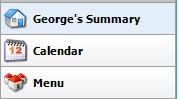
The user with Sales staff enabled now only has 3 menu items being the Summary Page (previously Home Page), Calendar and Menu.
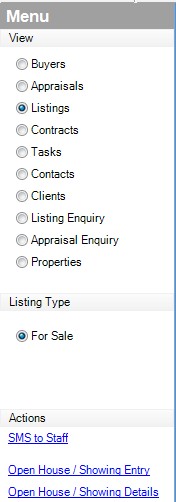
The simplified menu allows most sales functions to be performed from this one menu item. Staff required to access other menu items should not have the Sales Staff tick enabled in the Administration > Staff > General tab as this will limit the menu items available.
To increase the speed and show more records the Look For, Find Now or Advanced Search will only display the information in grid rows instead of the preview form for the Sales Staff users. Additional details can be viewed or edited by double clicking on the selected grid row.
Note: Permissions pertaining to the role will determine access to individual menu items.
CONTACT - PRIVACY SETTINGS - NEW FEATURE
Contact > Privacy Settings - The check boxes for Accepts Mail, Accepts Email, Accepts SMS and Accepts Phone Call are now on be default (check box ticked). If you have not entered a mobile number and/or email address for this contact you will need to untick the relevant check boxes before you will be able to save the record. If the Contact has no email address you should also change the 'Send eMarketing' selection to No or Never.
BUYER ENQUIRY - NEW FEATURE
Contact > Buyer Enquiry - Many agencies enter buyers in to the system and then have no further contact with that buyer. When a buyer enquiry status is changed to 'OLD' and the record is saved the system will delete any attached Buyer Activity Plan, convert the buyer status to 'OLD'. The date the buyer enquiry was made OLD and a message "Buyer Enquiry has been removed by ...... (name of user logged on)" will be inserted in the buyer enquiry Staff notes text box.
The system will also check the Contact record of the Buyer Enquiry for any associations (other than the current Buyer Enquiry). If no association exists you will be prompted to make the Contact status'Inactive'.
CROSS DEPARTMENT MATCHING - NEW FEATURE
Buyers can now match with ALL listings in ALL DEPARTMENTS in the same category (e.g. All residential listings or All Commercial Listings) in any department within the agency. The ability to match across departments is based on the permissions assigned to your role.
Listings can now match with ALL buyers in ALL DEPARTMENTS in the same category (e.g. All residential buyers or All Commercial buyers) in any department within the agency. The ability to match across departments is based on the permissions assignd to your role.
NOTE: Rural and Property Management Buyer Enquiries and Buyer Matching are still in development.
INTERNET STATISTICS - NEW FEATURE
Listings > Advertising > Internet Statistics - For clients with websites hosted by MultiArray a graphical display of website activity for a selected listing on your hosted website is now available. There are 5 periods to choose from and the total visits between the dates of your selection are displayed. The graph can be saved in jpg format if you wish to attach the file to an email and send to your vendor.
Note for office server users - to obtain the latest internet statistics, please connect to the central internet server.
TRANSFER JOURNAL - NEW FEATURE
Accounts > Transfer Journal - allows you to transfer available funds from one Contract Deposit Ledger to another Contract Sales Deposit Ledger within the same Trust Account. Transfer Journal feature also allows you to transfer funds from an Advertising Ledger to an associated Contract Sales Deposit Ledger within the same Trust Account.
Note: Agencies with multiple departments can now search all listing and all contracts in ALL DEPARTMENTS within the agency for the purpose of recording Trust Receipts, making Trust payments and Transfer Journal entries.
TRUST PAYMENT - NEW FEATURE
Accounts > Sales Deposit Payment - When drawing a Sales Deposit Payment to the company the system will now automatically create multiple lines for the transaction. These lines are the Company commission, Sundry Charges and Vendor Contribution due at settlement. If there is no amount to be recovered for a particular item it will not appear in the grid. Two new debit transactions have been created in Administration > Setup Tables > Transaction Reasons for the ledger type Sales Deposit to allow for the automatic creation of these lines.
We suggest that you use the NEW TRANSFER JOURNAL feature to transfer money from the Advertising Ledger for the listing to the associated Sales Deposit Ledger prior to drawing the funds to the company.
The balance details in the Accounts > Sales Deposit Payment now reflect the Trust Opening Balance instead of the Deposit required. The Account details are now also displayed on this form.
ADVERTISING - NEW FEATURE
Agencies with multiple departments can now search ALL listings in ALL DEPARTMENTS within the agency for the purpose of Recording Advertising, raising and paying invoices, Scheduled Advertising and Supplier Invoices.
ADVERTSING SUPPLIER INVOICE - NEW FEATURE
Advertising > Supplier Invoice - You can now record each advertising supplier item to match the invoice received from your advertising supplier. If you wish to record the vendor and lister expenses prior to receiving the supplier invoice you can now tick the Vendor Charged check box in the Listings > Advertising > Campaign or in the Advertising > Record Advertising area as soon as the advertisement appears or the service (e.g. sign ordered) is performed. The supplier charge can then be recorded through Advertising > Supplier Invoices when the invoice is received.
The Supplier Invoice allows you to enter the dates advertised from and to, the Date Invoiced, the Invoice due date and Invoice number. When paying th supplier invoice you can record the date the supplier was paid and the payment reference number.
Note: If you do not wish to wait until the supplier invoice is received or do not wish to match the campaign items to your supplier invoice ticking Supplier Charged will record expenses for Supplier, Vendor and Lister in one action.
NEW REPORTS
PLEASE NOTE: ACCESS TO NEW REPORTS IS BASED ON PREVIOUSLY DEFINED PERMISSIONS
If you require staff members with other roles to access new reports and they are unable to do this please check the permissions relating to their role in the Administration > Staff >Roles >Reports area. You will need to tick the for each report a particular role is permitted to access.
ADDITIONAL NEW REPORTS
LISTINGS > PRINT REPORT - ADVT013 -Advertising Invoice Statement - Records of invoices raised, payments received and balance owing can be printed from the Print Options menu of the selected listing or by right clicking on the selected listing and choosing Advertising Invoice Statement from the Actions menu.
TOOLS > SETTLED COMMISSION REPORT - Shows the History of all Settled Commissions and Commission Adjustments. This report can be filtered by Staff, Date Credited from and Date Credited.
TOOLS > WRITTEN COMMISSION REPORT - Shows the history or all Written commission and Written Commission Adjustments. Can be filtered by Staff< Date Credited Fram and Date Credited.
TASKS
Tasks > Actions - Right clicking on a selected Task record now displays the actions menu.
CONTACT
Contact > General - The following Categories have been to help you to classify your contacts - Accountant, Corporate Contact, Owner Occupier, Past Vendor and Receiver-Manager. Note: A contact can belong to multiple categories and groups.
Contacts > Actions - Right clicking on a selected Contact record now displays the actions menu.
PROPERTIES
RESIDENTIAL
Properties > Improvements - Pets allowed check box has been added to the properties >improvements page(can be used for uploading to MultiArray hosted websites).
Properties > Actions - Right clicking on a selected Property record now displays the Actions menu.
APPRAISALS
Appraisals > Fees & Charges - You can now record the suggested fees and charges for an Appraisal. The commission calculation uses the "Suggested selling price" to calculate expected commission.
Appraisals > Actions - Right clicking on a selected Appraisal record now displays the actions menu.
LISTINGS
Listings > Fees & Charges
Listings > Advertising > Invoices and Payments - A new tab has been included to show a history of all raised and cancelled invoices and the payments made against those invoices. An invoice statement for a selected listing can be printed from the Print Options menu available when the listing is in edit mode or by selecting the listing record in the grid and right clicking to print the Advertising Invoice Statement using the actions menu.
Listings > Notes - The comments section on the Listings > General Tab has now been moved to the Notes tab. You can use the notes tab to record notes against the listing. This tab is editable regardless of the status of the listing (e.g editable for withdrawn and settled status).
Listings > Actions - Right clicking on a selected Listing record now displays the actions menu. Actions now available
CONTRACTS
Contracts > Actions - Right clicking on a selected Contract record now displays the Actions menu.
TRUST ACCOUNT
Accounts > Sales Deposit or Accounts > Advertising Receipt - To enable you to quickly add multiple receipt entries the search form is displayed after saving the entry allowing you to search for the next contract or listing without having to enable the payment screen. For agencies with multiple departments you are now able to search for any listing within your agency without having to change departments. When you have completed entering receipts click cancel to close the search form.
ADMINISTRATION
STAFF
Staff > Roles & Security > Team Members - STILL IN DEVELOPMENT
Staff > Leave Entitlements > Annual Leave Entitlement - You can now view hours due on a future date for a staff member by entering a forward date in the Hours Due On field on the Leave Entitlements page and tabbing off the field. This information is useful if a staff member has requested annual leave in the future and you wish to check if their entitlement will cover the leave requested. Note: This information is not retained when the record is saved.
PAYMENTS
Payments > Settled Commission Adjustment - Allows you to enter commission adjustments for settled commissions. These adjustments will appear on the sales staff commission statement and adjust the commission balance accordingly. The view history allows you to view the history of settled commissions and adjustments between date ranges and for selected staff members. The selected information displayed in the grid can be printed or exported to Excel©.
Payments > Written Commission Adjustment - Allows you to enter commission adjustments for written commission. This is important when making adjustments for sales staff on a written commission scale. These adjustments will appear on the sales staff commission statement and be considered when calculating commissions for unsettled/uncredited commission using a written scale to calculate commission. The view history allows you to view the history of written commissions and adjustments between date ranges and for selected staff members. The selected information displayed in the grid can be printed or exported to Excel©.