 Home
 Back
 Forward
 Print
Export Contacts to Outlook
Export to Outlook - Contacts
1. To export your Contacts into your Outlook© click on Tools > Export to Outlook then the
following export to Outlook© option box will appear.
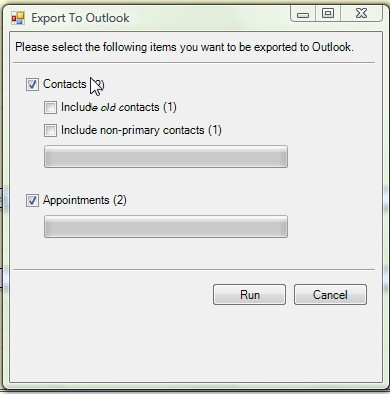
2. You now have the option export all your current Contacts to Outlook© by ticking the
Contact check box. To include all your OLD Contacts tick the Include old Contacts check
box. To include any Contacts for which you are not the primary contact tick the Include non-
primary Contacts check box.
Contact check box. To include all your OLD Contacts tick the Include old Contacts check
box. To include any Contacts for which you are not the primary contact tick the Include non-
primary Contacts check box.
Note: Every time you export your Contacts to Outlook© it will replace the previously exported contact information.
For Example: If Mary Jane was exported on Monday morning as a contact, and on Tuesday afternoon her contact details change in Real Estate Manager, only when you export your Contacts to Outlook© again will her contact details be updated in the REM contact folder in Outlook©. If Mary Janes’ contact details are changed in the REM contact folder in Outlook© and not Real Estate Manager next time you export your Contacts to Outlook© the export will replace her contact details in the REM contact folder with the information in Real Estate Manager.
For instructions on how to enter a contact see - Enter a new Contact.
4. Click Run when you are ready to Export to Outlook©.
5. When the Export to Outlook is completed for Contacts and Appointments the two status
bars will show as green to indicate the download has finished.
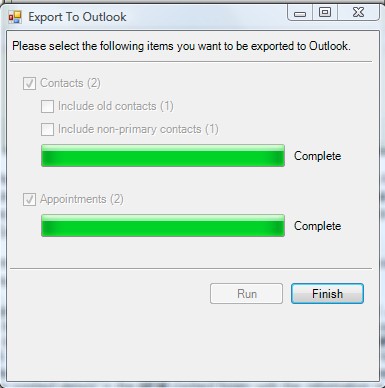
6. Select Finish to close the Export to Outlook© window.
Note: The Contact fields exported from Real Estate Manager to Outlook© are:
Title, First Name, Last Name, Full Name, Company, Email, Business Ph, Home Ph, Fax, Mobile, Home Address, Business Address, contact notes
Title, First Name, Last Name, Full Name, Company, Email, Business Ph, Home Ph, Fax, Mobile, Home Address, Business Address, contact notes