 Home
 Back
 Forward
 Print
Calendar – Access an appointment
You may access an existing appointment to view, edit or delete it. The Calendar will display the current month as well as subsequent months on the top left hand side panel. You may scroll through previous months or advance to future months by clicking on the < or > arrows respectively alongside the month shown.
Select the Calendar menu/function button.
1. Left click on the relevant date in the Calendar. Scroll up/down the Calendar to the appointment
time. The details of the appointment will appear in the top centre pane.
2. If the appointment is an All Day Event, double left click on the heading at the top of the screen
to view the details of the appointment.
3. If the appointment is scheduled for a particular time, double left click on the heading of the
appointment to view the details of the appointment.
Other staff’s appointments
If you have the permission to do so, you may view other staff’s appointments.
1. Select the Calendar menu/function button.
2. In the Staff Calendars area (located under the Calendar), select the relevant check box for
the Employee/s calendars to view. See diagram:
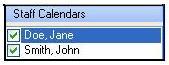
3. You will notice the screen will be split into equal parts for each employee selected and their
respective appointments will be displayed.
respective appointments will be displayed.
See Edit an Appointment for further help on editing an appointment.