Home
 Back
 Forward
 Print
Task Pad View
Calendar – Task Pad View
You may alter the Calendar Task Pad View to view Tasks on the screen in variousformats. This enables you to view all Tasks for Tomorrow, This Week, Next Week, Overdue Tasks and Active Tasks in Selected Days at a glance.
Note: The Task Pad View will only display the tasks that are assigned to the user that has logged on even if you have permission to view other staff calendars their tasks will not display.
1. Left click on the Calendar menu/fucntion button.
2. Left click on the View button (located at the top left hand side of the Task Bar).
3. Select Task Pad View.
4. Select the appropriate view format:
Tomorrow Tasks – If this option is selected, all Tasks with a commencement date for Tomorrow (i.e. One day in advance of the current logon date), and a status of Not Started or In Progress will be displayed in the Tasks list underneath the Calendar. Note: The date displayed will be Tomorrow’s date in the Tasks list Title Bar.
Overdue Tasks – If this option is selected, all Tasks with a commencement date the same as or prior to the current logon date and a status of Not Started or In Progress will be displayed in the Tasks list underneath the Calendar.
This Week – If this option is selected, all tasks with a commencement date for the Current Week (i.e. From Monday to Sunday), and a status of Not Started or In Progress will be displayed in the Tasks list underneath the Calendar. Note: The dates displayed will be from Monday to Sunday in the Tasks list Title Bar.
Next Weeks Tasks – If this option is selected all Tasks with a commencement date for Next Week (i.e. From next Monday to next Sunday), and a status of Not Started or In Progress will be displayed in the Tasks list underneath the Calendar. Note: The dates displayed will be from next Monday to next Sunday in the Tasks List Title Bar.
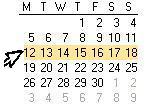
Active Tasks in Selected Days – If this option is selected you may view Tasks with a commencement date; that have a status of Not Started or In Progress in any week of your choice (Monday to Sunday). Using the Calendar, position your mouse pointer in front of the required week, your pointer will change position from right facing to left facing, left click on the mouse button and the appropriate week will be highlighted. You may increase/decrease the days highlighted by clicking and dragging the highlighted days. See: Diagram.